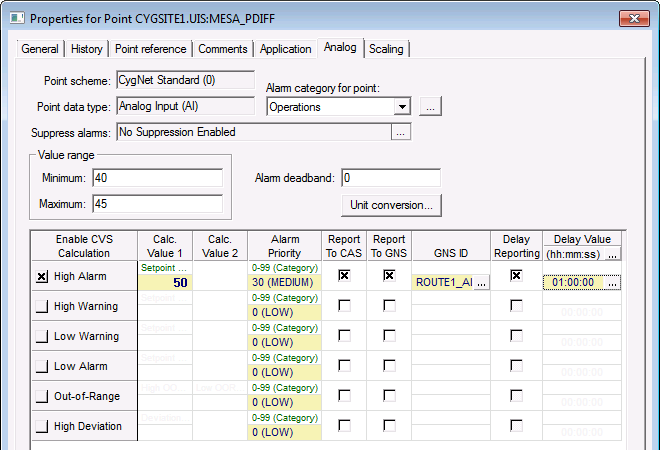
Use the Analog page to configure analog properties for a particular point. The Analog page is shown when the point type is set to Analog Input or Analog Output on the General page.
|
|
| Sample Analog page for an Existing Point |
These are the properties shown on the Analog page in the PNT Editor. See also the ALARMSET security event for more information.
See Token Categories - Point: Alarm for the corresponding tokens for each property and Filter Attributes - Point: Alarm for the corresponding filter attributes for each property.
| Property | Description | Default Value | ||||||||||||||||||
|---|---|---|---|---|---|---|---|---|---|---|---|---|---|---|---|---|---|---|---|---|
|
Point scheme |
Read-only. This value is set on the General page. |
|||||||||||||||||||
|
Point data type |
Read-only. This value is set on the General page. |
|||||||||||||||||||
|
Alarm category for point |
Select the alarm category for the point. Click … to select a table entry. The entry comes from the PNTALCAT table. |
Blank |
||||||||||||||||||
|
Suppress alarms |
Enables or disables suppression of alarms for the point and the suppression ending condition(s). Click … to configure Alarm Suppression. See also the ALMSUPP security event for more information. |
0 (No) |
||||||||||||||||||
|
Value range: Minimum |
For Analog Output points, specifies the minimum allowable setpoint for the point. For Analog Input points, specifies the low range for point values. Note: If you use this property, any value returned by the point’s Current Value Service that is less than this value will be set to the minimum and the Status of the point will be set to Unreliable. |
0 |
||||||||||||||||||
|
Value range: Maximum |
For Analog Output points, specifies the maximum allowable setpoint for the point. For Analog Input points, specifies the high range for point values. Note: If you use this property, any value returned by the point’s Current Value Service that is greater than this value will be set to the maximum and the Status of the point will be set to Unreliable. |
0 |
||||||||||||||||||
|
Alarm deadband |
Specifies the amount the value must exceed the alarm setpoint by to reset (clear) the alarm. See Alarm Deadband for more information. |
0 |
||||||||||||||||||
|
Unit conversion… |
Click to convert units from any unit in the same unit family. See Alarm Limit Unit Conversion below. |
|||||||||||||||||||
| Alarm Properties | ||||||||||||||||||||
|
Enable CVS Calculation High Alarm Enabled High Warning Enabled Low Warning Enabled Low Alarm Enabled Out-of-Range Enabled High Deviation Enabled |
Enables the alarm bit. Options are 0 (No) or 1 (Yes). The alarm bit can be enabled without the Report Alarms flag set. In the CygNet Standard Point Scheme, the alarms correspond to the following bits and alarm calculation types:
See also the CFGBITxx security event for more information. |
0 (No) |
||||||||||||||||||
|
High Alarm Calc Val 1 High Warning Calc Val 1 Low Warning Calc Val 1 Low Alarm Calc Val 1 Out-of-Range Calc Val 1 High Deviation Calc Val 1 |
Specifies the value of "Val 1" for the alarm calculation. For all alarms except Out-of-Range, this is the alarm setpoint. For Out-of-Range, this specifies the High Out-of-Range value. Value can be any rational number; however, value field is limited to 16 characters. |
Blank |
||||||||||||||||||
|
High Alarm Calc Val 2 High Warning Calc Val 2 Low Warning Calc Val 2 Low Alarm Calc Val 2 Out-of-Range Calc Val 2 High Deviation Calc Val 2 |
Specifies the value of "Val 2" for the alarm calculation. This is applicable only to the Out-of-Range alarm. It specifies the Low Out-of-Range value. Value can be any rational number; however, value field is limited to 16 characters. Note: To successfully display a point in a "Low Out-of-Range" alarm, you will need to first configure the point to have either a low warning or low alarm setpoint. This tells the service that the point is currently in the "Low Out-of-Range" state. |
Blank |
||||||||||||||||||
|
Alarm Priority High Alarm Priority High Warning Priority Low Warning Priority Low Alarm Priority Out-of-Range Priority High Deviation Priority |
Specify the priority of the point’s alarms. Option is 0 to 99, with 99 being the highest. In the CygNet Standard Point Scheme (0), alarm priorities are categorized as follows:
|
0 (No) |
||||||||||||||||||
|
Report To CAS |
Select to reporting point alarms to the Common Alarm Service (CAS). Options are 0 (No) or 1 (Yes). The individual alarm bits must be enabled. |
0 (No) |
||||||||||||||||||
|
Report To GNS |
Select to report point alarms to the General Notification Service (GNS), which will send notifications when an alarm bit is set/reset. Options are 0 (No) or 1 (Yes). The individual alarm bits must be enabled. |
0 (No) |
||||||||||||||||||
|
GNS ID |
Select the ID of the GNS record to use for the notification regarding the alarm. The record type must be "Event" or "Unspecified." Click … to select a GNS ID. See Configuring a GNS Record for information about setting up GNS IDs. |
Blank |
||||||||||||||||||
|
Delay Reporting |
Select to delay reporting of the alarm to the CAS or to the GNS for some period of time to see if the point goes out of alarm. Options are 0 (No) or 1 (Yes). The individual alarm bits must be enabled. |
0 (No) |
||||||||||||||||||
|
Delay Value |
Specify the amount of time to delay reporting alarms or processing notifications. The countdown begins when the alarm bit gets set. When set, that delay time governs all delay times for the point. Click … to enter the reporting delay value. The format is as follows:
|
00:00:00 (hh:mm:ss) |
||||||||||||||||||
A built-in unit conversion utility is available to easily convert primary to secondary unit values for a point. The Alarm Limit Conversion dialog box can be invoked for any Analog Point.
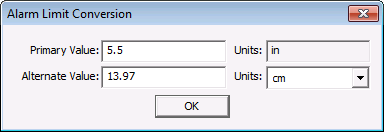
Different measurement units can be selected from any unit of the same unit family, and you can change the value field for the primary or secondary value.
Example
If the primary units are "inch" and the secondary units are "cm", and the value of 5.5 is entered into the Primary Value field this will result in a value of 13.97 in the Alternate Value field. This conversion will also work in the reverse. If 13.97 is entered into the Alternate Value field then a value of 5.5 will appear in the Primary Value field. Unit value conversion only works for Analog points.
| Options | Description |
|---|---|
|
Primary value |
Displays the value for the point as converted by its units. |
|
Units (for Primary value) |
Units that the primary value is displayed as. |
|
Alternate value |
Displays the value of the point as converted by its units. |
|
Units (for Alternate value) |
Units that the Alternate value is displayed as. |

|
|
|

